Difficulty: Medium
OS: Windows
Date Completed: 2026-10-26
Write-up Authored by: Ian Simons
Lab Created by: Ian Simons
Core Competencies:
-
Defense in Depth
-
Least Privilege
-
Active Directory Hardening
-
Group Policy Hardening
Overview
Recently I created an Active Directory lab where I successfully went from a low privileged user to a Domain Admin using attacks such as Kerberoasting and Pass-the-Hash (previous lab can be found here). This week I thought it would be a good exercise to take that lab and harden it as best I can to prevent this attack from succeeding again. I really enjoyed it. There is something special about attacking and then defending your own machine which is hard to put into words.
Lab Setup Review
As a quick review of our setup for this lab, there are two Windows Server 2022 devices DC01 (IP 10.10.10.5) serving as our domain controller and FS01 (IP 10.10.10.20) serving as a file server. Both servers were made discoverable across the network by anyone. a low-privilege user account John Doe (JohnD@n00b.lyfe) with the password: “Password123!@#” The purpose of this account was to allow us to begin from an assumed breach scenario. Additionally, a service account backup_svc (backup_svc@n00b.lyfe) was also created. The service account was assigned a ServicePrincipalName (SPN) and then made a local admin on FS01. This was to simulate a lazy administrator who gave the backup service account local admin privileges rather than setting up more granular access control as needed. Lastly the built-in domain account Administrator (Administrator@n00b.lyfe) logged into the file server preparing attack path.
Previous Attack Path
The attack path that was used in the previous lab is listed below. Today this will serve as a map to harden our environment against this attack in the future. While a single break in this chain would protect the domain, we will be utilizing a defense in depth approach so that if any individual mitigation is insufficient, we are still protected from the attack path in the future.
-
Utilize the provided credentials (
JohnD@n00b.lyfe) to enumerate all service accounts with a ServicePrincipalName (SPN) -
Identify backup_svc as a service account with an associated SPN, making it a candidate for Kerberoasting
-
Request Ticket Granting Service (TGS) ticket for backup_svc’s SPN and extract the associated hash
-
Crack the hash associated with the TGS ticket offline
-
Log onto FS01 remotely with the newly compromised account
-
Disable Microsoft Defender to facilitate execution of credential dumping tools
-
Extract NTLM hashes from LSASS memory
-
Identify the built-in domain Administrator account and extract the associated NTLM hash
-
Utilize Pass-the-Hash to obtain administrative access to DC01 as
Administrator@n00b.lyfe
Mitigations and controls Summary
The following mitigations will be created to address the above attack path. Some items cannot be fully mitigated given the current setup. If a risk cannot be fully mitigated, it will be reduced where possible and explicitly documented.
-
Ensure that all service accounts are configured as Group Managed Service Accounts (gMSA)
-
Deny local and remote logon to all service accounts
-
Remove unnecessary local administrator privileges from all service accounts
-
Enable Anti-tamper protection on Windows Defender
-
Prevent dumping of LSASS memory by setting it up as a protected process, enable credential Guard, and prevent LSASS from caching of plaintext credentials
-
Disable NTLM authentication
-
Address the proper use of domain administrator accounts and recommend the creation of separate accounts with only the least privilege needed to complete their tasks
Group Managed Service Accounts (gMSA)
Attack Path Steps: Kerberoasting and Password cracking (steps 3-4)
The first mitigation to put in place is to ensure that service accounts are set up as Group Managed Service Accounts (gMSA). It is important to note that this does not prevent Kerberoasting itself. GMSA is a means to protect the password of service accounts. By setting up gMSA, Passwords are 240 bytes long, consisting of randomized numbers, letters, and special characters, they will be automatically rotated every 30 days, and they cannot be accessed even by domain administrators. What this does for our attack path is it prevents the offline cracking of the service account’s password. While standard Kerberoasting will still allow the hash to be extracted, it is no longer feasible to crack the hash. Given how long and complicated the hash is, it would take notably longer than 30 days to crack, and at that point the password will have already been rotated. Unfortunately, this will also require rebuilding the account as there is no way to move a service account from a standard account to a gMSA. When doing this ensure that the account is created as identically as possible and maintain a backup of the original account in case the change needs to be reverted. Ensure that the owner of the account and the owner of any services the account is used for are notified. This notification should be made before the change and in alignment with organizational change controls.
Steps to Implement Change
-
Log onto DC01 and run the following command as administrator:
Add-KDSRootKey -EffectiveImmediatelyWhile this is the correct way to make this change, it also will not work for our lab as Active Directory wants the key to replicate throughout the environment and will default to waiting 10 hours for this replication to occur. Because of the limited scope of this lab, instead we will runAdd-KDSRootKey -EffectiveTime (get-date).addHours(-10)This is done so that we do not need to wait 10 hours for gMSAs to be used. -
Create a security group called gMSA scoped globally with the following command
New-ADGroup -Name "gMSA_computers" -GroupCategory Security -GroupScope Global -
Add any devices that need access to the gMSAs to the group that was just created with the following command
Add-ADGroupMember -identity "gMSA_computers" -Members "FS01$" -
Restart any devices added to gMSA_computers (in our case FS01)
-
Replace the old service Account with the new gMSA using the following command
Remove-ADUser -Identity backup_svc -Confirm:$false; New-ADServiceAccount backup_svc -DNSHostName backup_svc.n00b.lyfe -PrincipalsAllowedToRetrieveManagedPassword "gMSA_computers" -
Ensure that all settings on the new account match the old account, including things like SPNs group membership etc.
-
Install RSAT-AD-PowerShell on all gMSA_computers members with the following command
Install-WindowsFeature -Name RSAT-AD-PowerShell -
Install the Service account we built on the necessary devices with the following command
Install-ADServiceAccount backup_svc -
Verify the Service account access with the following command
Test-ADServiceAccount backup_svcoutput should be “True”
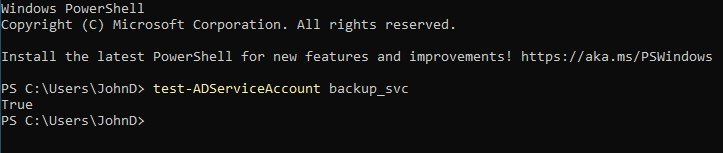
Figure 1: Demonstration that the change has been made on FS01, showing that backup_svc has been installed on server.
Deny Local and Remote Logon for Service Accounts
Attack Path Steps: Log on with compromised service account (step 5)
While gMSA greatly reduces the odds of a service account’s password being compromised, additional actions will be taken to ensure that even if a gMSA’s password is compromised, it cannot be used to log onto a device. This will be accomplished through a Group Policy Object (GPO).
Steps to Implement Change
-
Create a group for all gMSA accounts using the following command
New-ADGroup -Name "gMSA_accounts" -GroupCategory Security -GroupScope Global -
Add all gMSA accounts to this group, in this lab there is only one account so we will use the following command
Add-ADGroupMember -Identity "gMSA_accounts" -Members "backup_svc$" -
Open Group Policy management as Administrator
-
Right click on the domain (n00b.lyfe) and select “Create a GPO in this domain, and Link it here…”
-
Name the GPO “Deny_ServiceAccount_Logons” and leave the Source Starter GPO set to none
-
Expand the Domain subsection, find the newly created GPO, right click and select “Edit…”
-
In the Group Policy Management Editor navigate to Computer Configuration>Policies>Windows Settings>Security Settings>Local Policies>User Rights Assignment
-
find “Deny log on locally” and “Deny log on through Remote Desktop Services”.
-
Double click on “Deny log on Locally”. In the window which pops up check the “Define these policy settings” box
-
Click the newly available button “Add User or Group”
-
in the new window select “Browse”
-
In the new window type in “gMSA_accounts” then select check names.
-
gMSA_accounts should now be underlined indicating it was successfully found.
-
Click “OK”, in the previous Window click “OK” as well, finally in the Properties window click “Apply” followed by “OK”
-
Perform steps 9-14 again but click on “Deny log on through Remote Desktop Services” instead.
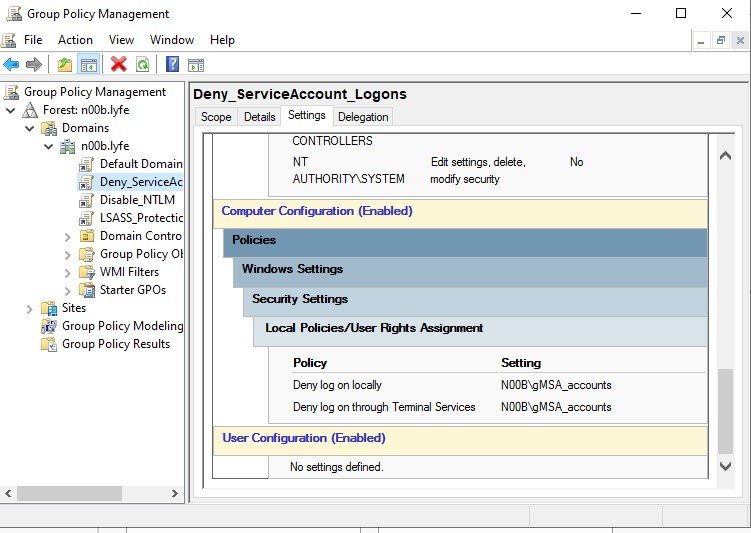
Figure 2. Group Policy report showing change preventing logon of gMSA_accounts either locally or via Remote Desktop Services (listed as Terminal Services).
Remove Unnecessary Local Administrator Privileges
Attack Path Steps: Disable Defender, and Extract NTLM Hash from LSASS memory (steps 6-7)
This step, while technically simple, requires additional procedural steps which cannot be ignored. Someone (in this case a lazy administrator) gave this account administrative privileges unnecessarily. This person needs to be notified that the account will no longer have those permissions and that fine-grained access control following the principle of least privilege needs to be implemented instead. If we do not take this step, something will break and the person responsible for keeping it working will not know why it broke. This prevents things from breaking unnecessarily and creates a paper trail showing that the administrator was notified of the action you took, and the remediation required on their part.
Steps to Implement Change
-
Log onto FS01
-
Open Powershell as an administrator and run the following command
Remove-LocalGroupMember -Group "Administrators" -members "n00b\backup_svc"note that this command only works if you did not delete the original account back during the first mitigation. If you deleted the account in first mitigation, then you simply need to make sure not to add it to the local administrators group when you built the gMSA -
Email the service owner and follow any change controls as appropriate.
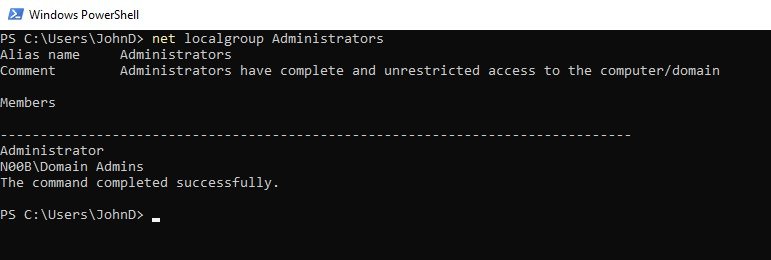
Figure 3. net localgroup Administrators run showing service account is no longer local admin.
Enable Anti-Tamper Protection in Windows Defender
Attack Path Steps: Disable Defender (step 6)
To prevent an attack from disabling Windows defender, anti-tamper must be enabled. However, this presents a problem: if we remain a strictly on-premises Windows Active Directory Environment, there is no way to centrally manage defender. Further even if we went through and manually enabled anti-tamper on defender for every device, a local administrator would still be able to disable Defender. If it is feasible, the best mitigation here is to move to a hybrid environment and centrally managed Windows Defender via Intune. This will prevent local administrators from being able to disable Defender. If the environment must remain strictly on premises, then this risk must simply be accepted.
Prevent Dumping of LSASS Memory
Attack Path Steps: Extract NTLM hash from LSASS memory (step 7)
Preventing the extraction of NTLM hashes is of critical importance. With an NTLM hash an attacker doesn’t need an accounts password, the attacker can simply use the hash instead. As long as NTLM authentication exists, this will remain a problem. For this reason, three mitigations will be implemented to attempt to prevent the extraction of NTLM hashes. It should be noted that these are not perfect fixes. A determined sophisticated attacker may still be able to extract the NTLM hash despite these controls. First LSASS will be forced to be run as a protected process light (PPL), second Windows Credential Guard will be enabled which is a built-in Windows security feature that protects sensitive domain credentials, and finally LSASS will be prevented from caching credentials in plain text. All of this will be accomplished by creating a GPO.
Steps to Implement Change
-
Log onto DC01
-
Open the Group Policy Management as an Administrator
-
Right click on the domain (n00b.lyfe) and select “Create a GPO in this domain, and Link it here”
-
Name the GPO “LSASS_Protection” and leave source starter GPO as “none”
-
Right click on the newly created GPO and select edit
-
Navigate to Computer Configuration>Preferences>Windows Settings>Registry right click and select New>Registry Item
-
Set the Action to “Update” and the hive to “HKEY_LOCAL_MACHINE”
-
Set the Key Path put “System\CurrentControlSet\Control\Lsa”
-
For the value name enter “RunAsPPL”, for the value type select “REG_DWORD”, and for value data enter “1” you can select either Hexadecimal or Decimal for the base.
-
Click “Apply” and “OK”
-
Right click and select New>Registry Item
-
Set Action to “Update” and the hive to “HKEY_LOCAL_MACHINE”
-
set the Key Path to “SYSTEM\CurrentControlSet\Control\SecurityProviders\WDigest”
-
Set the value name to “UseLogonCredential”, set the value type to “REG_DWORD”, and set the Value Data to “0”. You can select either Hexadecimal or Decimal for the base.
-
Click “Apply” and “OK”
-
In the Group Policy Management Editor Navigate to Computer Configuration>Policies>Administrative Templates: Policy Definitions>System>Device Guard
-
Double click “Turn On Virtualization Based Security” in the upper left select enabled.
-
In the options box set the following options
- Select Platform Security Level: Secure Boot and DMA Protections
- Virtualization based Protection of Code Integrity Enabled with UEFI lock
- check box for Require UEFI Memory Attributes Table
- Credential Guard Configuration: Enabled with UEFI lock
- Secure Launch Configuration: Enabled
-
Select “Apply” and “OK”
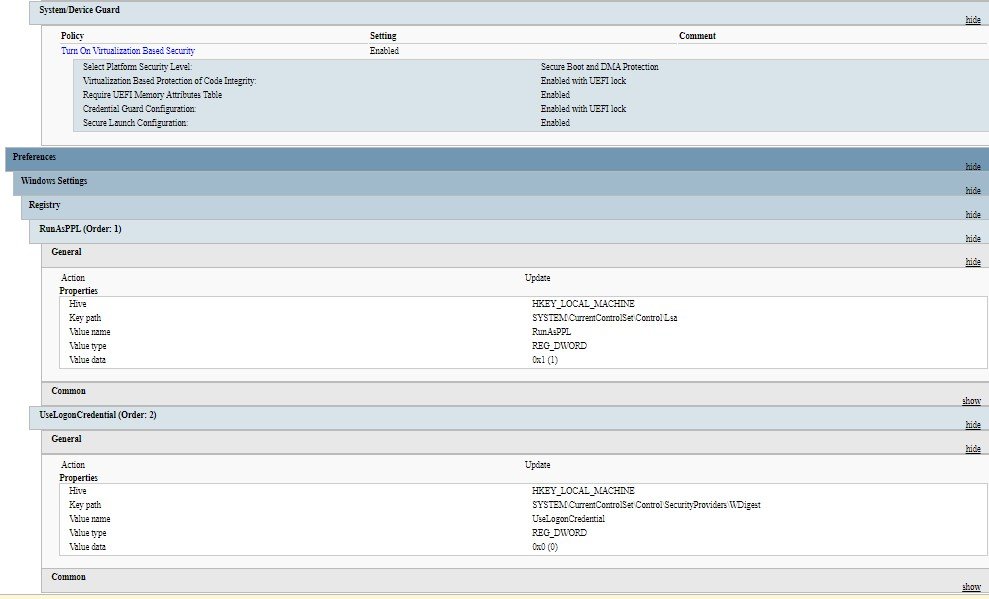
Figure 4. GPO Report showing credential Guard is enabled, as well as the changes to registry keys.
Disable NTLM Authentication
Attack Path Steps: Pass-the-Hash (step 9)
Preventing Pass-the-Hash is a complicated topic. Disabling NTLM authentication is relatively simple in and of itself. However more often than not, doing so will break legacy systems for that reason it is typically best to start by auditing NTLM and seeing where it is still in use. Additionally, even if you disable NTLM authentication, other similar attacks such as pass-the-ticket etc. can still be performed. This also does not address the root cause of the issue in the attack chain. There is no reason why a domain administrator should have an account on a file server. While not a perfect solution and definitely not the way to implement this in a production environment, below is how to disable NTLM authentication, preventing a Pass-the-Hash attack.
-
Log onto DC01
-
Open the Group Policy Management as an Administrator
-
Right click on the domain (n00b.lyfe) and select “Create a GPO in this domain, and Link it here”
-
Name the GPO “Disable_NTLM” and leave source starter GPO as “none”
-
Right click on the newly created GPO and select edit
-
In the Group Policy Management Editor navigate to Computer Configuration>Policies>Windows Settings>Security Settings>Local Policies>Security Options
-
Find and double click “Network Security: Restrict NTLM: NTLM authentication in this domain”.
-
Check the box for “Define this policy setting” and select “Deny all”
-
Click “Apply” and click “Yes” when asked to confirm the setting change
-
Click “OK”
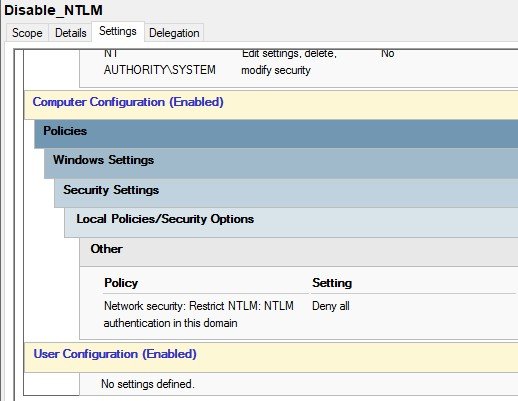
Figure 5. GPO Report Showing that NTLM Authentication is disabled.
Implement Least Privilege Accounts
Attack Path Steps: Extract NTLM hash from LSASS memory (step 7)
Part of the reason that this attack had such a high impact was because an administrator had logged onto FS01 with a domain administrator account. If this had not happened, the NTLM hash would not have existed in LSASS memory in the first place. This is a textbook case of why least privilege accounts should be implemented. There is no reason that a domain administrator account should ever log onto a file server. Instead, a server administrator account should be created which allows the user to log onto the server, read logs, and edit and configure services as needed. Recommended Accounts and privileges are listed below.
| Account type | Usage |
|---|---|
| Standard User Account | Used for typical day to day activities such as email, web browsing, documentation and non-administrative tasks |
| Server Admin | Used only for management of member servers. May administer services, review logs, and perform server maintenance |
| Domain Admin | Used only for Active Directory administration and Domain Controller maintenance. Should not be used to log onto workstations or member servers |
Hardening Outcome Summary
| Attack Step | Before | After |
|---|---|---|
| Kerberoasting | Success | Hash extractable, but nearly uncrackable |
| Service Account Logon | Success | Blocked |
| Defender Disable | Success | Risk reduced |
| LSASS Dump | Success | Significantly harder |
| Pass-the-Hash | Success | Blocked |
| Domain Admin Exposure | Success | Eliminated through least-privilege administration (assuming recommendation is followed) |
Lessons Learned
This was my first Hardening lab. It made it so much more meaningful knowing that an attack I had successfully executed was no longer viable. I really enjoyed learning about Service accounts and some of the modern defenses that Microsoft has pushed out such as gMSA. This lab also forced me to really get my hands dirty in Group Policy, which was new. I definitely feel like I have a much better hands-on grasp of it now, whereas before it was all strictly theoretical, some key takeaways include:
-
A mitigation does not need to completely prevent an attack to provide value
-
Defense in Depth is not easy to implement, but it is also not easy to bypass, which is what makes it so powerful
-
Least Privilege is one of the most effective security controls you can implement.